

Small account tabs
Browse with separate identities inside a normal window: each small account has its own cookie jar. Sign-in is remembered; closing a tab does not destroy the session. You can stay signed in to a second or third account and switch in the same window—no extra Incognito window required.
Available on Windows and macOS. A real Incognito window still wipes its session when closed, and can run alongside small account tabs.
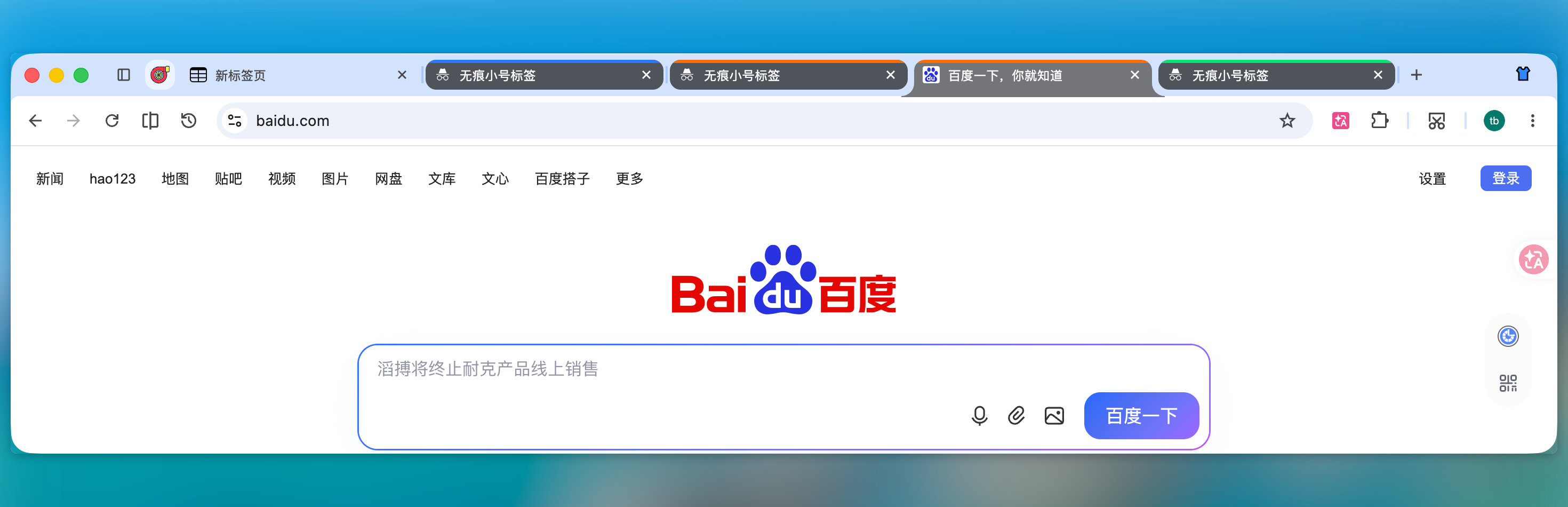
Small account tabs: darkened appearance and same-identity accent strips; switch alongside normal tabs in one window
When to use it
- Persistent multi-account sign-in — Keep your main tab signed in; open another account in a small account tab without cookie conflicts; reopen the same identity later still signed in
- Isolated site data — That identity’s cookies / local storage stay off your main profile and other identities
- Same-window switching — Flip between normal and small account tabs without jumping between a normal window and an Incognito window
For leave-no-trace browsing (session destroyed on close), use New Incognito window, not small account tabs.
How to open and manage
Use any of the following.
App menu
Open the top-right app menu and the Small account tabs submenu: create, open an existing identity, rename, or delete one. Custom names appear in the menu and tab title.
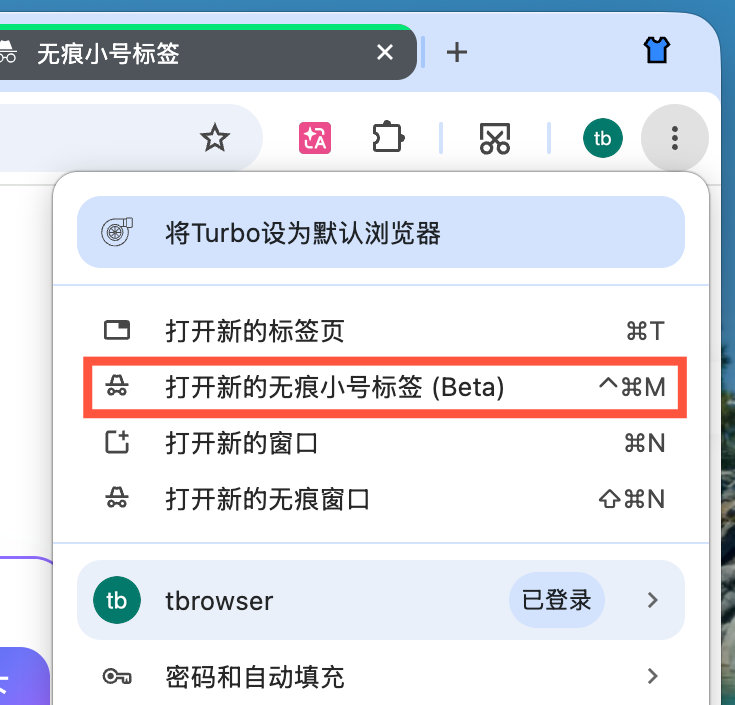
App menu → Small account tabs: create / open / rename / delete identities (shortcut ⌃⌘M / Ctrl+M opens a new small account tab)
Tab strip right-click
Right-click a tab or empty tab-strip area to create or switch a small-account identity.
Shortcut
| Platform | Shortcut |
|---|---|
| Windows | Ctrl + M |
| macOS | ⌃⌘M (Control + Command + M) |
Right-click New tab
By default, right-clicking the tab strip New tab (+) button is “paste and open.” If you turn that off under Settings → Tabs and bookmarks, right-clicking + opens a small account tab instead. See Tabs → Paste and open.
Links and bookmarks
- Right-click a tab and choose Open in small account tab.
- Right-click a link and choose Open link in small account tab → submenu to create or pick an existing identity (same as the bookmark bar).
- Bookmark context menu: Open in small account tab / Open in a new small account tab.
- After you create a small account tab, pages opened from a bookmark keep that identity.
Rename from the tab context menu
Right-click a small account tab to rename the current identity (in split view, enabled for the target tab). Custom names appear in the menu; the tab title uses a [name] prefix.
How it works
- Open a small account tab via the app menu (create or open an identity), shortcut, or (with paste-and-open off) right-click +.
- The tab chip is darkened, and tabs of the same identity share a top accent color strip (five high-contrast colors; after five, the same color adds segments); with vertical tabs, the strip sits on the window edge. The split-view tab picker also shows that accent on the favicon.
- Browse and sign in as usual; that identity’s cookies and site data stay isolated from the main profile and other identities.
- Closing the tab does not sign you out. Reopen the same identity from the app menu later. Delete the identity to clear its cookies. After closing a small-account tab,
Ctrl+Shift+T(macOS:Cmd+Shift+T) restores it with the same identity, including cookies and the accent strip. After restart, pinned tabs and session-restored tabs also keep their identity.
You can keep several identities at once; they stay isolated from each other.
vs. Incognito window
| Small account tab | Incognito window | |
|---|---|---|
| Where | Tab inside a normal window | Separate Incognito window |
| Data | Independent cookie jars on the regular profile | Incognito session (not merged into everyday profile) |
| On close | Closing the tab keeps sign-in; delete the identity to clear | Closing the window destroys that window’s session |
| Day-to-day switching | Same window as normal tabs | Switch between windows |
| Extensions | Supported | Follows the current Incognito-window policy |
Both can run together—for example, long-lived accounts in small account tabs while a full Incognito window handles one-off isolated browsing.
Notes and limits
- Extensions supported — Extensions work on these tabs.
- Not Incognito — Sign-in and cookies persist. Use New Incognito window when you need no traces.
- Visual cue only — Darkened chips and accent strips help recognition; do not treat color alone as the security boundary.
See also
- Vertical tabs — side tab layout
- Built-in productivity — paste and open, split view, and more
- Shortcuts — including this feature’s shortcut
- Features — full capability list
- Practical tips — more everyday tips
- Immersive mode — auto-hide tab strip and toolbar