

Practical tips
Everyday Turbo Browser tips to browse faster. Follow the links in each item for full details.
Get productive faster
- One-step import from Chrome or Edge — Use the first-run wizard for bookmarks, passwords, autofill, and extensions (per release). See Data Import.
- Pick Turbo or Google sign-in — Turbo account uses Turbo cloud sync; Google account uses Google sync. Switch from the avatar menu or Settings. See Sync.
- Built-in translate — Whole-page translation from the page context menu or the right side of the address bar; Settings → Translate can switch Microsoft Edge / Google. Install Immersive Translate when you need bilingual reading and more. See Extensions → Web translation.
- AdGuard blocks ads, Immersive Translate for bilingual reading — Use the install buttons on Extensions & translation.
- Install from Crx搜搜 — Open
chrome://extensionsand use the sidebar link to Crx搜搜, or install.crxpackages from trusted sources in one click. See Extensions.
Tabs & windows
- Tab enhancements — Double-click / right-click close, close tabs to the left (Close tabs above in vertical tabs), activate on hover, scroll to switch tabs, restore, paste and open, mute, close last tab, close-window confirm, and more; most toggles under Settings → Tabs and bookmarks. See Tabs.
- Bookmark bar enhancements — Bookmark menu, auto-hide, icons only, multi-column menus, how bookmarks open, add page to a folder, replace with current page, and more; most toggles are under Settings → Tabs and bookmarks. See Bookmark bar.
- Vertical tabs for heavy tab users — Use the Tab layout toggle on the tab strip, or Settings → Tabs and bookmarks → Tab strip position; in vertical layout you can move the strip to the right, and choose full-height or below-toolbar style plus a separate title bar. See Vertical tabs.
- Split view for side-by-side reading — The toolbar split button divides the window into left and right panes. See Built-in productivity → Split view.
- Small account tabs — Persistent identities in a normal window (cookies remember sign-in); closing a tab does not destroy the session. App menu Small account tabs to create / open / rename / delete identities; tab right-click can rename or Open in small account tab; shortcut
Ctrl + M(Windows) /⌃⌘M(macOS); bookmarks and links can open in the matching account (links use a submenu to create or pick an existing identity). Five high-contrast accent colors help tell them apart. Use a real Incognito window when you need the session wiped on close. See Small account tabs. - Video hover toolbar — Settings → Webpage extras (on by default); hovering a webpage video shows a toolbar at the top-right (opacity 10%–100%) for mini window, in-page fullscreen, and download (improved video download; Douyu / Huya / Douyin site fullscreen; Douyu / Huya mini-player supports danmaku; supported sites without a direct link can use VideoFk; YouTube fullscreen stays in-tab); hides faster after leaving the video or toolbar; mini window remembers size/position and stays on top by default;
Alt+Pshares the pin toggle with the title bar. Include the page URL when reporting compatibility issues. See Video hover toolbar.
Gestures & super drag
- Hold right button and drag — Defaults: ↑ scroll up, ↓ scroll down, ← back, → forward, with a live path preview. See Mouse gestures.
- Combo gestures save clicks — e.g. →← reopen last closed tab, ↓→ close current tab, ↑← / ↑→ previous/next tab; full list in Settings.
- Super drag — Drag links or images to a blank area to open or copy; drag selected text to search or copy; can map Find in page, Search this site, copy selection + current URL, copy link text, download link/image, generate QR code, and more. Toggle in Settings → Mouse gestures, and configure up / down / left / right separately per link / text / image; None no longer falls back; follow-cursor tip shows direction and action while dragging (can turn off); right-click during a drag to cancel. See Mouse gestures → Super drag.
- Boss key hides the window instantly — Default
Ctrl + Q(Control on macOS, not Command); press again to restore. In Settings you can separately toggle Mute while hidden and Restore to foreground (both on by default). See Shortcuts or Boss key & gestures.
Address bar & sharing
- Hover for QR code — Scan on your phone to continue on mobile.
- One-click copy URL {#copy-link} — Address-bar copy icon: left-click copies the URL; right-click copies title + URL (Appearance Copy link content setting removed). Copy / QR icons appear after a short hover delay to reduce flicker. Paste and go is pinned at the top of the omnibox context menu.
- Find — Pin Find from Customize Toolbar; the icon sits in the address bar, shows on hover, and stays visible while the find bar is open.
- Address bar buttons — Settings → Appearance can toggle the full URL, Install app, bookmark star, and Ask separately (Install and star on by default, Ask off by default; synced with settings).
- Right-click for settings — Right-click the search-engine icon to open Search engine settings; right-click the site-info icon to open Site settings (no menu in either case).
- Switch default search engine — When the address bar is empty or being edited, a dropdown arrow appears beside the search-engine icon; click to switch the default engine.
- Search with other search engines — Right-click selected webpage text; under the default search item, expand Search with other search engines; the bottom entry opens Search engine settings.
- Show search history — Settings → Search engine can toggle Show search history (visible only when Google is the default engine, on by default). When off, the address bar and new-tab search box no longer show local Google search-history suggestions; visited-page suggestions are unaffected.
Screenshots & export
- Right-click screenshot for full page — Left-click: full screen; right-click: save the page as image or PDF — handy for archiving long articles. See Screenshots.
- Region capture —
Ctrl + Shift + X(Windows) /Cmd + Shift + X(macOS).
Video hover toolbar
Turn on Video hover toolbar under Settings → Webpage extras (on by default). When enabled, hovering a webpage video shows a toolbar at the top-right (opacity 10%–100%):
- Mini window — a draggable mini window; remembers size and position and stays on top by default; pin/unpin from the title bar — remembered separately from normal-window always-on-top;
Alt+Pshares the pin toggle with the title bar; Douyu / Huya mini-player supports danmaku - In-page fullscreen — enlarge the video in the current tab (on major sites including Douyu / Huya / Douyin this clicks the site’s fullscreen control; featured cards fall back to in-page fullscreen when no site control is available; YouTube fullscreen stays in-tab, not a real window fullscreen); exiting the mini window also exits in-page fullscreen
- Download — improved video download; uses the browser download when a direct link exists; supported sites without a direct link open the VideoFk download page; the toolbar can also open Settings or hide itself for the current tab
- Page menus over the player no longer pin the toolbar; hides faster after leaving the video or toolbar
- The toggle is included in Turbo sync
If you hit a compatibility issue, include that page’s URL when you report it.
Look & feel
- Customize the toolbar — Switch standard / compact layout in Settings → Tabs and bookmarks or by right-clicking the tab strip. Click Customize on the right of the toolbar and use the Toolbar section in the side panel to show or hide Home, Forward, Split view, Restore, Incognito, Bookmarks, Password Manager, Settings, Mute, Find, and more. You can also right-click any toolbar button to quickly toggle that control; long-press or right-click the reload button for Normal / Hard / Empty-cache reload. The avatar button is shown by default; right-click to unpin, then pin it back from Customize Toolbar. Mute one-click mutes / unmutes all tab audio in the current profile; while muted the button also appears temporarily if unpinned. Pinned Find sits in the address bar and shows on hover.
- How Home opens — Settings → Tabs and bookmarks: Current tab / Foreground tab / Background tab (default: current tab). See How Home opens below.
- New tab page — Chromium default NTP (bottom My shortcuts / Most visited tabs; daily landscape wallpapers available); Settings → On startup — default or a custom URL. See New tab page below.
- Paste on middle-click / Auto-copy selected text — Settings → Webpage extras (off by default). See Paste on middle-click and Auto-copy selected text below.
- Hide tab close buttons — Settings → Tabs and bookmarks (off by default). See Tabs → Hide close buttons.
- One-click theme on the title bar — Switch appearance without opening Settings; right-click to pin the skin button (also in Customize Toolbar). Edge theme store is also available from the title bar. See Built-in productivity → Themes.
- Follow system light/dark — Choose system theme under Settings → Appearance for comfortable night browsing.
- Smooth scrolling — Settings → Appearance (Windows / Linux, on by default); smooth animation when scrolling page content; restart required after changing.
- Darken websites in dark mode — When the browser is dark, sites without a dark theme can be darkened automatically. See Darken websites in dark mode below.
- Immersive mode for focus — Enable Immersive mode under Settings → Appearance, or press
Ctrl + F11(macOS:Cmd + F11); on macOS you can also use View → Enter Immersive Mode. Auto-hides the tab strip and toolbar; move the pointer to the top edge to reveal. See Immersive mode.
How Home opens
Settings → Tabs and bookmarks → How Home opens — three choices (default: Current tab):
| Option | Behavior |
|---|---|
| Current tab | Toolbar Home replaces the current page |
| Foreground tab | Opens Home in a new foreground tab |
| Background tab | Opens Home in a new background tab |
Applies to normal windows. If the current tab is already an NTP or blank page, Home still uses the current tab so you do not get an extra empty tab.
New tab page
No bundled NTP extension (install one from the store if you want). The default is the Chromium new tab page. Switch between My shortcuts and Most visited tabs at the bottom.
Under Settings → On startup, New tab page:
- Default new tab page — Chromium NTP; bottom tabs switch My shortcuts (custom shortcuts, up to 30, wrapping to the next row when the current row is full; included in Turbo sync) and Most visited (up to 10); the customize side panel can switch daily landscape wallpapers and toggle daily refresh; you can also hide the My shortcuts / Most visited tabs and shortcut icon / category-button backgrounds (shown by default); the New tab page section can show/hide the Logo and search box and adjust shortcut size, count, and corner radius; the search box can switch search engines (same as the address bar); typing on a blank area of the page focuses the search box
- Custom URL —
Ctrl+T, +, and other blank new tabs open that URL; closing the last tab still treats it as an NTP; opening a bookmark no longer overwrites the current tab
If an extension declares a new-tab override, its details page shows Allow replacing the new tab page (on by default). Turn it off to keep the extension without replacing the NTP.
Paste on middle-click
Turn on Paste on middle-click in Settings → Webpage extras (off by default). Middle-click in a webpage text field then pastes the clipboard; if text is selected, it replaces the selection instead of inserting (that field no longer starts autoscroll on middle-click).
Auto-copy selected text
Turn on Auto-copy selected text in Settings → Webpage extras (off by default). Selecting webpage text with the mouse or keyboard copies it to the clipboard. Selections in text fields and other editable areas are not copied, so typing or filling forms does not overwrite the clipboard. Optional Show toast (off by default): a Toast after a successful copy; the same text is not repeated.
Darken websites in dark mode
In Settings → Webpage extras, turn on Darken websites in dark mode (off by default). When the browser itself is dark, pages without a dark theme are darkened automatically; light browser appearance does not force pages dark.
Fine zoom
Two ways to use it:
- Turn on Fine-grained zoom in Settings → Appearance (off by default). The Page zoom dropdown then uses 5% steps as the default for all pages; normal
Ctrl/Cmd++/-also uses 5% steps on the current page. - With the toggle off, hold Shift for 5% steps (tooltip: Hold Shift for 5% steps). The scroll wheel and zoom buttons still use the original presets. Shortcuts: Windows
Ctrl + Shift++/-, macOSCmd + Shift++/-.
Clear selected data on exit
When you close the browser, Turbo can automatically delete the local data types you checked in the Clear browsing data dialog (browsing history, cookies, cache, and so on — whatever the dialog lists). Off by default.
How to enable
- Open Settings and go to Clear browsing data (or open
chrome://settings/clearBrowserDatain the address bar). - Check the data types you want cleared on exit.
- Turn on Automatically delete selected data when you close the browser.
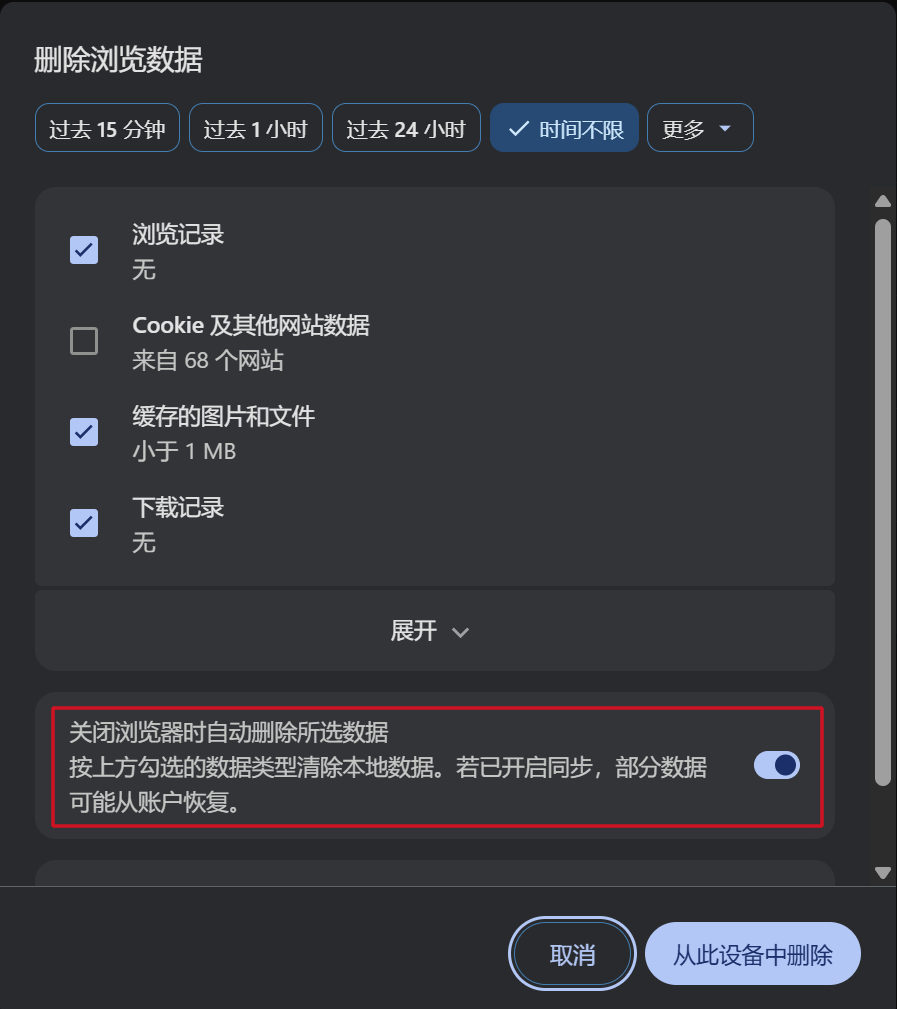
Clear browsing data: check the types you want, then enable automatic delete on exit
After that, each full quit clears the checked types. If a previous exit clear did not finish, the next startup finishes it.
Notes
- Only local data is removed. If sync is on, some items may return from your account after sign-in.
- Confirm the checked types before enabling, so you do not delete data you still need.
Network & downloads
- System proxy or custom proxy — Open Settings → System (or go to
chrome://settings/system). With Use system proxy enabled, Turbo follows the OS proxy; click Open your computer's proxy settings to change the address and port in system settings. Turn it off to use Custom proxy and configure a server and bypass list for Turbo only, without affecting other apps. Handy for intranet, VPN, or sync issues. See Help Center. - Custom startup command line — Settings → System can enable and fill startup command-line arguments; injected into the browser and child processes after restart. On Windows,
--disable-windows10-custom-titlebaruses the system title bar. - Parallel downloads, Xunlei / IDM, Alt quick-save images — See Download enhancements.
Performance
- Memory Saver on by default — Lower memory use with many tabs; adjust in performance settings if needed. If a page still crashes from low memory, see Page out of memory.
Custom cache location
In Settings → System, turn on Use a custom cache location and click Change to pick a folder (for example on a larger disk). Restart the browser for the change to take effect. Turning the toggle off restores the platform default path.
macOS tip
If the app won’t open because of quarantine:
xattr -d com.apple.quarantine /Applications/Turbo.appMore: macOS cannot open.
Further reading
| Guide | When to use |
|---|---|
| Mouse gestures | Right-drag and super drag |
| Shortcuts | Default hotkeys and boss key |
| Tabs | Close, restore, paste and open, mute, and more |
| Bookmark bar | Bookmark menu, auto-hide, icons only, multi-column menus, and more |
| Vertical tabs | Side tab layout and how to switch |
| Built-in productivity | Deep dive on screenshots, split view |
| Download enhancements | Parallel downloads, Xunlei / IDM, quick-save |
| Quick Start | Recommended setup after install |
| Help Center | Troubleshooting and FAQ |